
Searching for Projects
You can locate projects in the project list using either keyword search or creation date filters.
1. Search by Keyword
To find a project using a keyword:
- Go to the search bar in the project list.
- Enter any relevant word or phrase.
For example, typing "museums" will return all projects where this keyword appears in any project details, including:
-
Project name
-
Survey URL
-
Survey system
-
Any other searchable project field

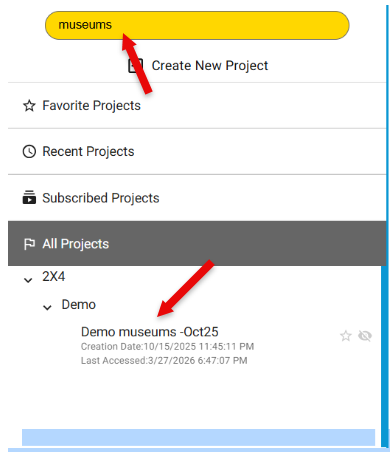
This allows you to quickly locate projects based on partial information or related terms.
2. Search by Creation Date
You can also filter projects by the date they were created using the ***created:*** search operator.
-
To find all projects created in a specific year: created: 2026
-
To narrow the search to a specific month: created: 2026-03
-
To search for projects created on a specific day: created: 2026-03-15

This is useful when you know approximately when the project was created but not its exact name.
3. Filters with a slash
Type a slash as the first character of the search box to see the available filters, then the values that match the projects you have:
created:- the creation date, as above. The list shows the years and months with the number of projects in each, plus shortcuts for today, the last 7 days, this month and this year.accessed:- the date a project was last opened, with the same values and shortcuts.
Choosing a shortcut writes the resolved filter into the box, for example created:2026-08, so you can see it
and adjust it. A filter can be combined with a keyword: accessed:2026-10 museums finds the museum projects you
opened this month.
