
The AI Administration & Usage Controls feature allows administrators to manage the AI engines available within SurveyTester or add a custom AI Engine. AI engines power AI-driven capabilities, such as generating Test Cases from questionnaires. Before any AI features can be used, at least one AI engine must be configured and enabled.
Administrators can control which AI engines are available, set a default engine, assign engines to users, groups, or projects, and monitor AI consumption across the organization.
Use this feature when you need to:
-
Control & assign which AI models are available to your organization.
-
Monitor AI usage and consumption.
-
Establish governance and cost controls for AI-enabled functionality.
Ensure the following permissions are enabled for the appropriate administrative roles:
- Manage Company AI Engines: Allows administrators to create, configure, and maintain AI engines available to the organization.
- View AI Usage: Allows users to review AI usage and consumption statistics.
- Assign AI Engines: Allows users to assign AI engines to projects, users, or groups.
Once enabled, these options can be accessed from:
Administration & Settings → AI Engines
Administration & Settings → AI Usage
Step-by-Step Instructions
Configure & Assign AI Engines
- Navigate to Administration & Settings → AI Engines.
- Add or configure the AI engines available to your organization.
- Select the AI engine that should be used as the default engine.
- Save your changes.

Configure Custom AI Engines
- Navigate to Administration & Settings → AI Engines.
- Click Add Engine.
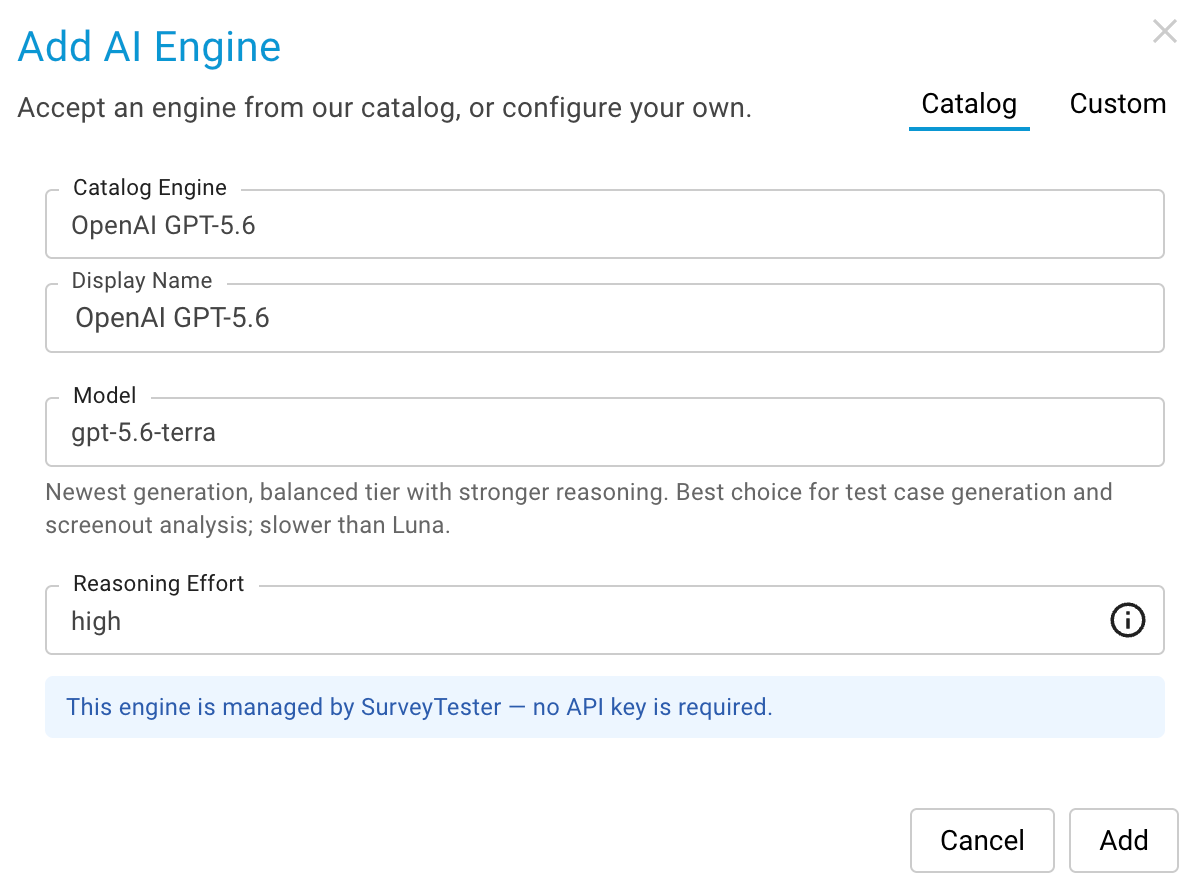
- Select the AI engine from the Catalog or add Custom and fill in the necessary details.
- Save your changes.
Reasoning Effort
An AI engine based on a model that supports it (the GPT-5 family, for example) can be given a reasoning effort next to the model in the engine dialog: how much time the model spends reasoning before it answers. The levels on offer come from the engine's vendor; higher levels think longer and cost more. Leave it unset to use the model's own default - unset is not the same as the lowest level. The configured effort appears as a badge in the engine list, models that do not support the setting do not offer it, and the description of the selected model is shown underneath the model list.
A practical split: a fast, cheap engine without extra reasoning for answering surveys and reading page structures, and an engine with a low or medium effort pinned to testcase generation and questionnaire analysis, where the extra thinking pays off.
Review AI Usage
- Navigate to Administration & Settings → AI Usage.
- View AI consumption metrics for your organization.
- Review usage details by project, user, engine, model, or time range as needed.
- Use the data to monitor adoption and manage AI-related costs.
Business Value
- Improved AI Governance through centralized management.
- Cost Visibility with organization-wide usage monitoring.
- Controlled Access by assigning AI engines only where needed.
- Flexible Deployment of different AI engines across projects and teams.
Notes
- AI-powered features are unavailable until at least one AI engine has been configured.
- Users must have the appropriate permissions to manage or view AI engine settings.
- AI usage statistics help organizations understand consumption and optimize AI-related costs.
Key Takeaway
SurveyTester provides centralized AI administration, allowing administrators to manage AI engine availability, control access, assign engines to projects and users, and monitor AI usage across the organization from a single location.